 TenutoWeb (Version 3) Tutorials
 Time blocks have a number of properties that determine their behavior. These properties can be set when creating or editing a time block.
Edit time block properties
To edit a time block properties:
- Find the time block you want to edit
- Click the little triangle next to the word view
- Click edit
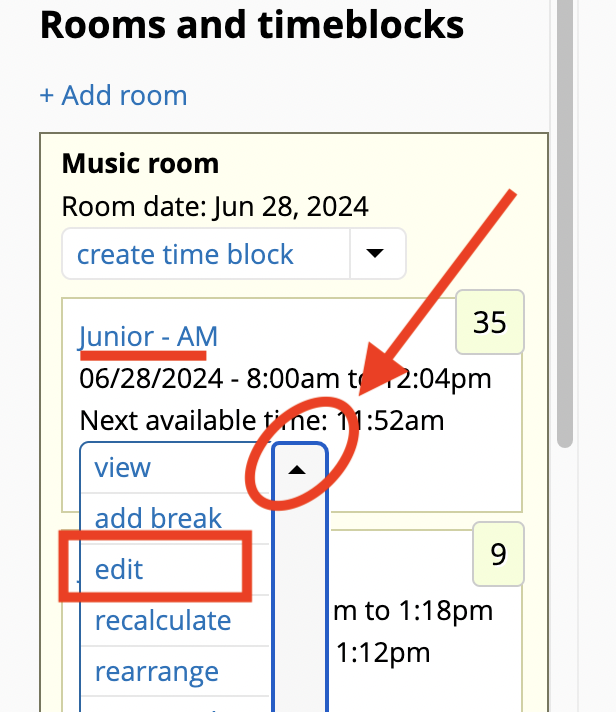
This will open the time block edit page:
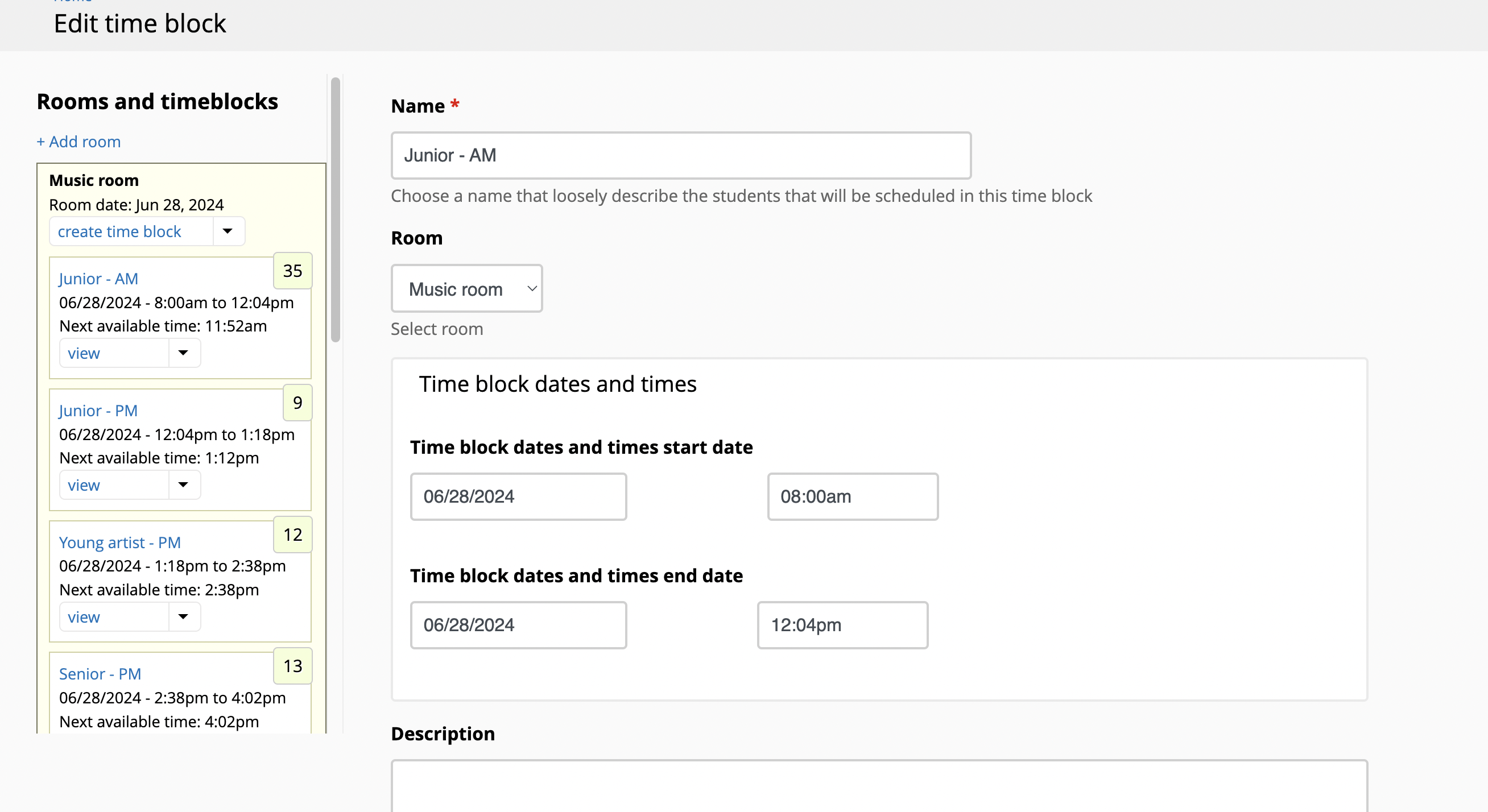
Time block properties - what they do
Most properties are self-explanatory. This is a partial list of those that require an explanation:
Scheduling mode: sequential or group
Sequential mode will indicate to the time block that its time slots are sequential. For example, Student 1 will be schedule at 8:00am, Student 2 at 8:07am, etc.
Group mode will tell the time block that all its time slots will start at the same time. For example, Student 1 will be schedule at 8:00am, Student 2 ALSO at 8:00am, etc. This mode is particularly useful to schedule group tests, where all students must start the test at the same time.
Slot mode: flexible or fixed
Flexible slot mode tells the time block to create slots that match the duration of the pieces for each student. For example, assigning a student whose pieces last 8 minutes into a "flexible" time block will create a time slot that lasts for 8 minutes. If the next student's pieces last 10 minutes, then that student's time slot will be 10 minutes long.
Flexible slot mode is a great way to create slots of the exact duration needed.
Note: flexible slots use the total "trimmed length" of the pieces for a specific student. If you event has time limits for the pieces for different levels, the system calculates the "trimmed length" based on those limits.
Fixed slot mode tells the system to create slots of a specific, fixed length. That length is determined by the field called "Slot duration"
Buffer time
Buffer time is the time the system inserts between students. By default, this is 2 minutes long, meaning that, if Slot 1 ends at 8:15, Slot 2 will start at 8:17am, etc. You can change the buffer time at any time. The system will recalculate the time slot times after saving.
Colors
Colors are a helpful way to visually "link" time blocks with similar student populations. For example if you have several time blocks for Junior level, you may choose the same color for all of those.