 TenutoWeb (Version 3) Tutorials
 Virtual judge sheets allow judges to log in the system, write and submit comments in a form within the system. Those comments remain private until the manager releases them.
Managers can release the judge sheets to the teachers, who will receive and email with a direct link to the sheet. That link can be shared with parents, who also can access the sheets without the need to log in to the system.
Judge sheets are customizable. If you need specific fields to be filled by the judge, or a specific look, please contact TenutoWeb.
Process to allow judges to use virtual judge sheets
- Assign judges to your time blocks by going to "Judges > Assign personnel". If you need to create or edit a judge, use "Judges > Manage personnel"
- Once judges have been created and assigned, they can log in the TenutoWeb system by using their email as their username. They will need to click "Request a new password" and then check their email to complete the log in
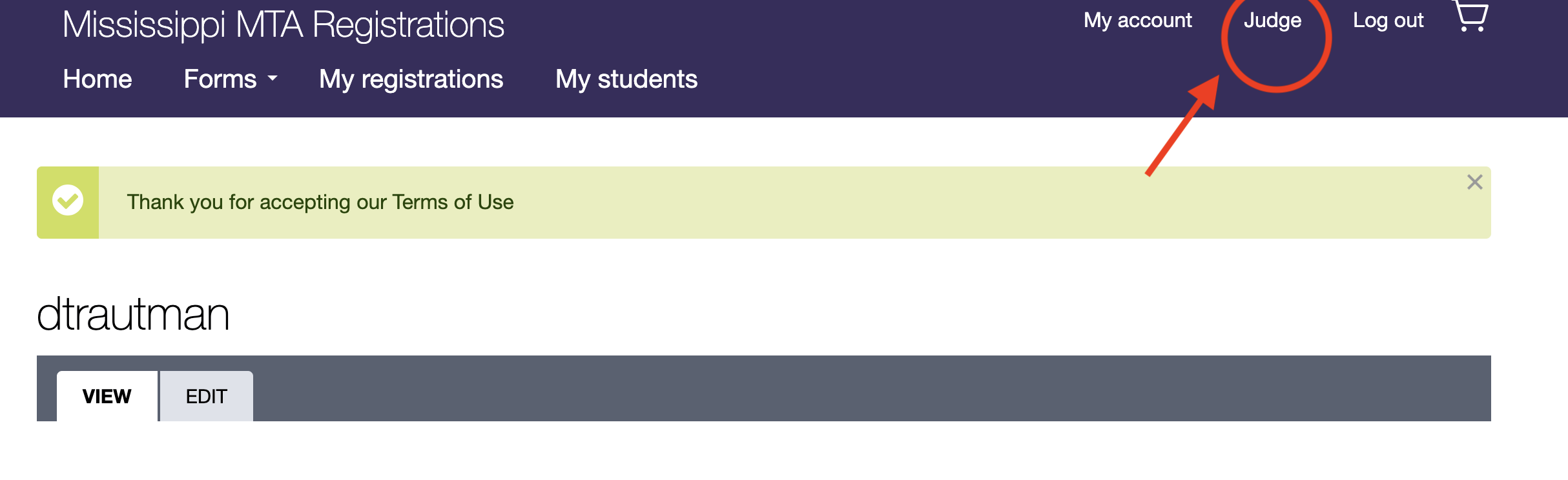
- Once logged in, the judge must click the Judge link to see their judge sheets
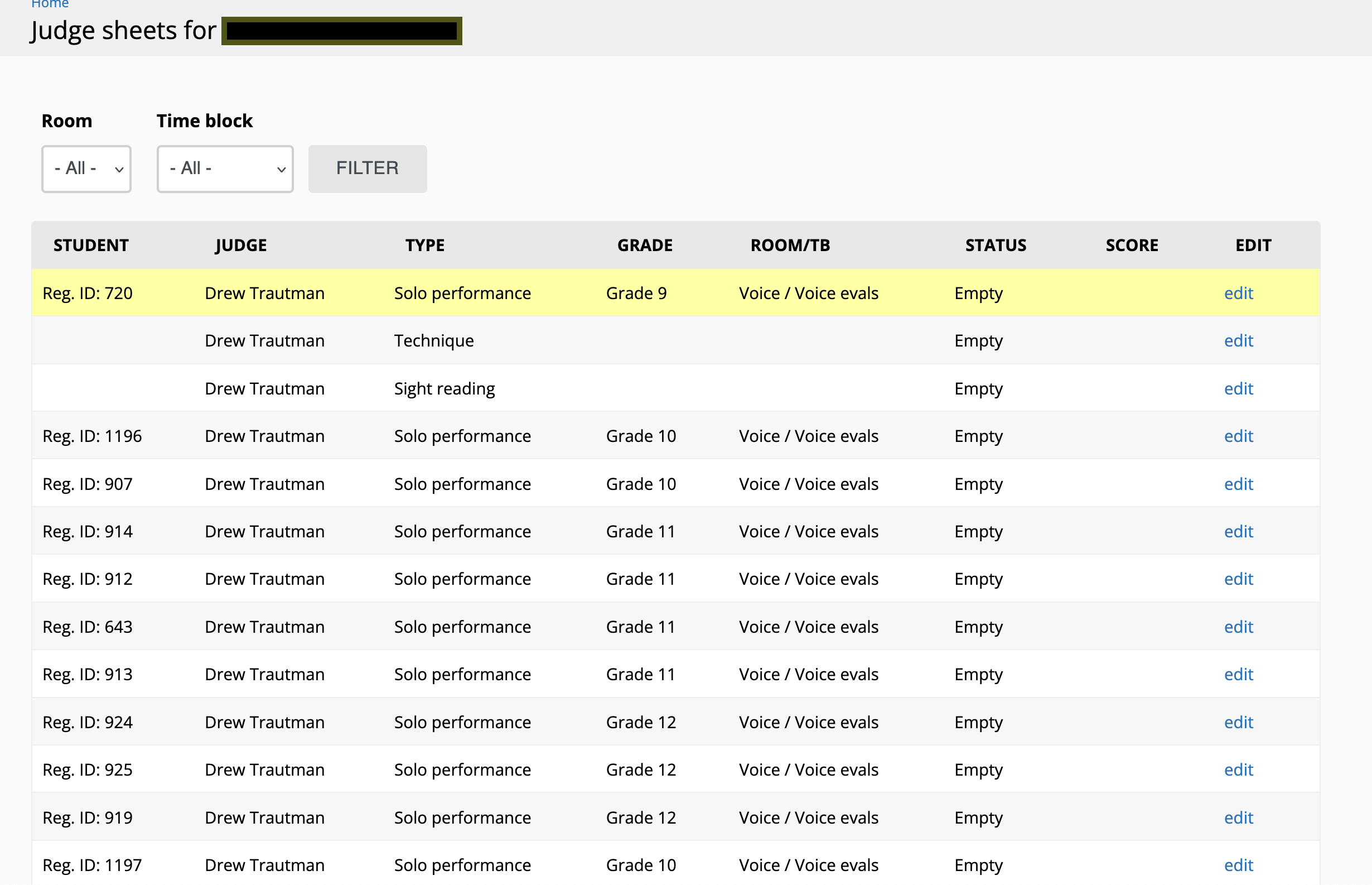
4. The judge sheet list looks like this. Clicking on "edit" will allow the judge to enter comments and scores.
5. Manager are also able to see every judge's judge sheets by going to "Judge sheets > Virtual judge sheets". Notice that this list will include ALL the virtual judge sheets for ALL judges in the event. Managers are also able to edit judge sheets.
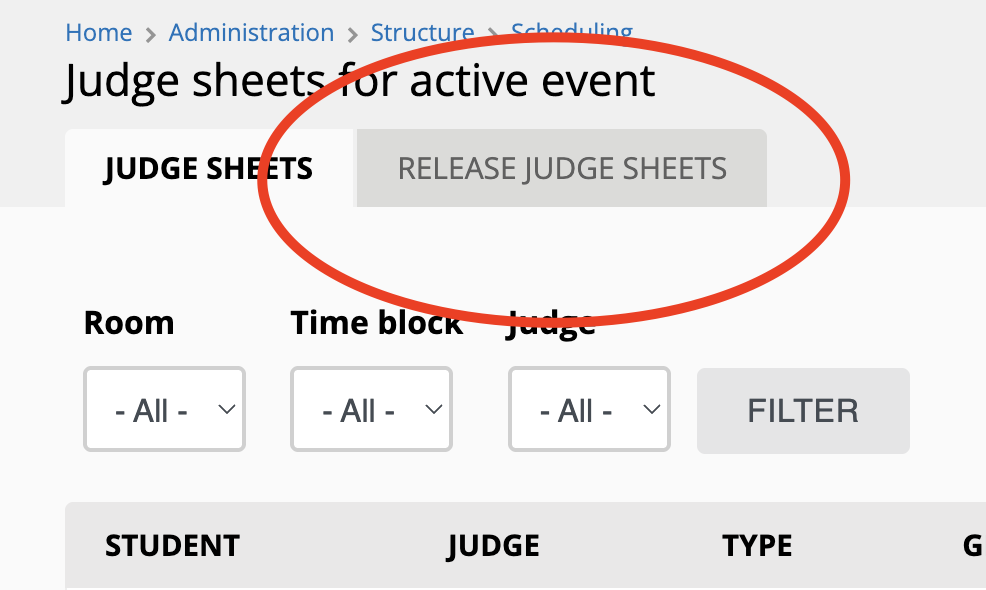
6. Once all judge sheets have been completed, managers can release those sheets to the teachers by going to "Judge sheets > Virtual judge sheets" and clicking the "Release judge sheets" tab. The manager needs to select the teachers whose judge sheets will be released and can then choose to email those teachers automatically.
7. If the manager chose to email the teachers, teachers will receive an email with links that will allow them and the students/parents to access those sheets without logging in.